Test Instructions
1.Power on the board
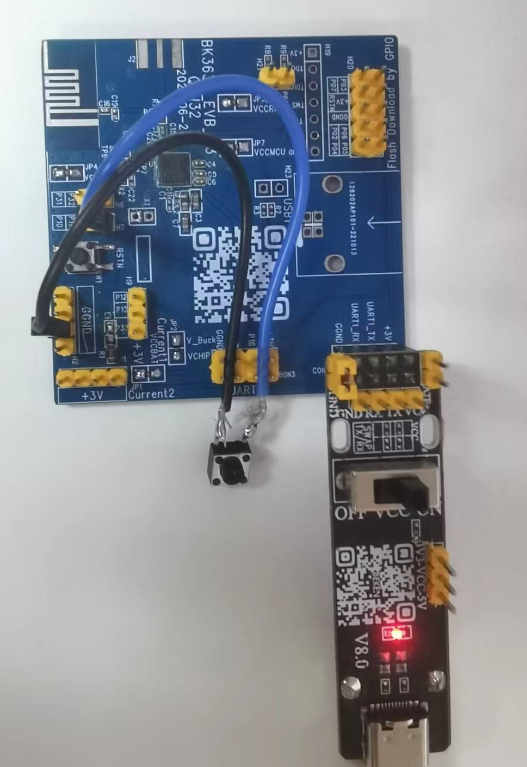
Development board
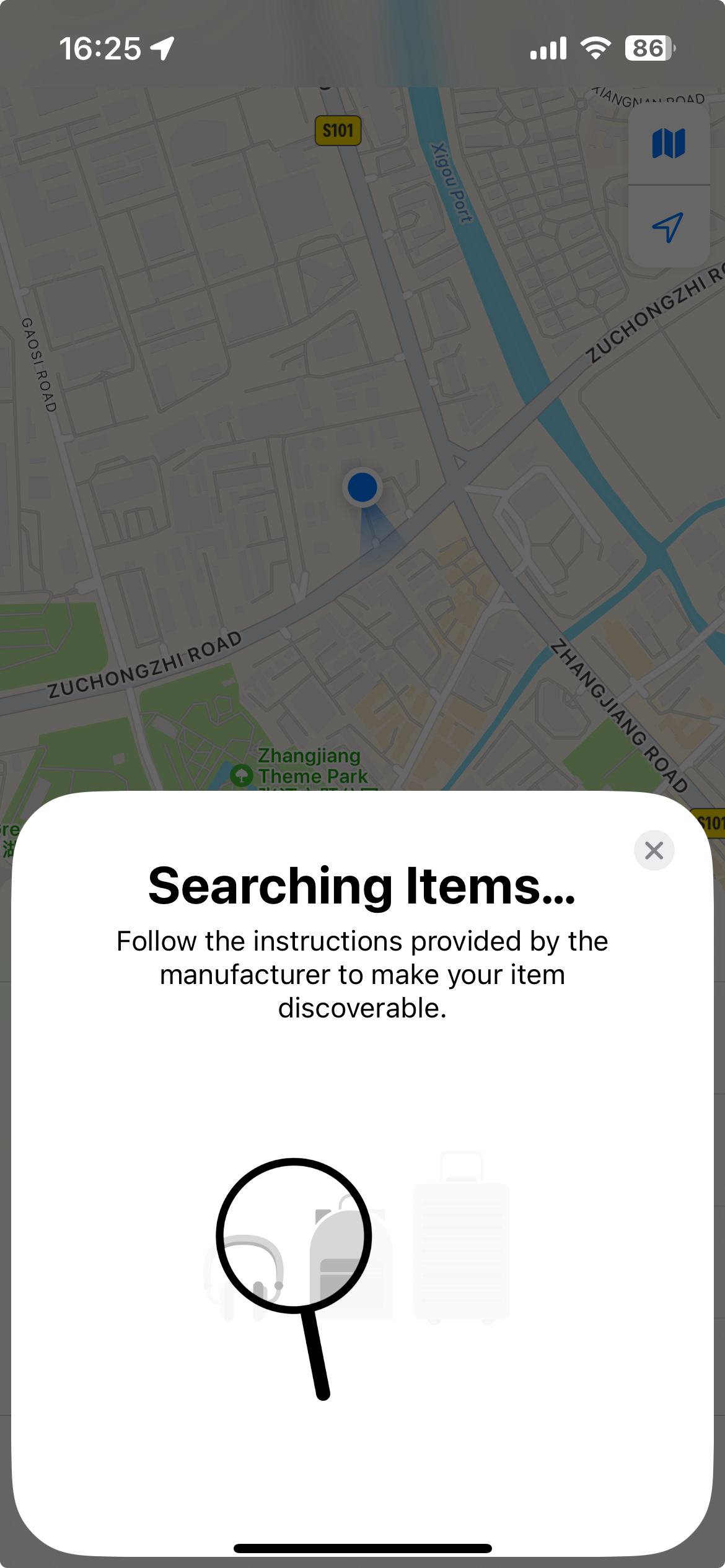
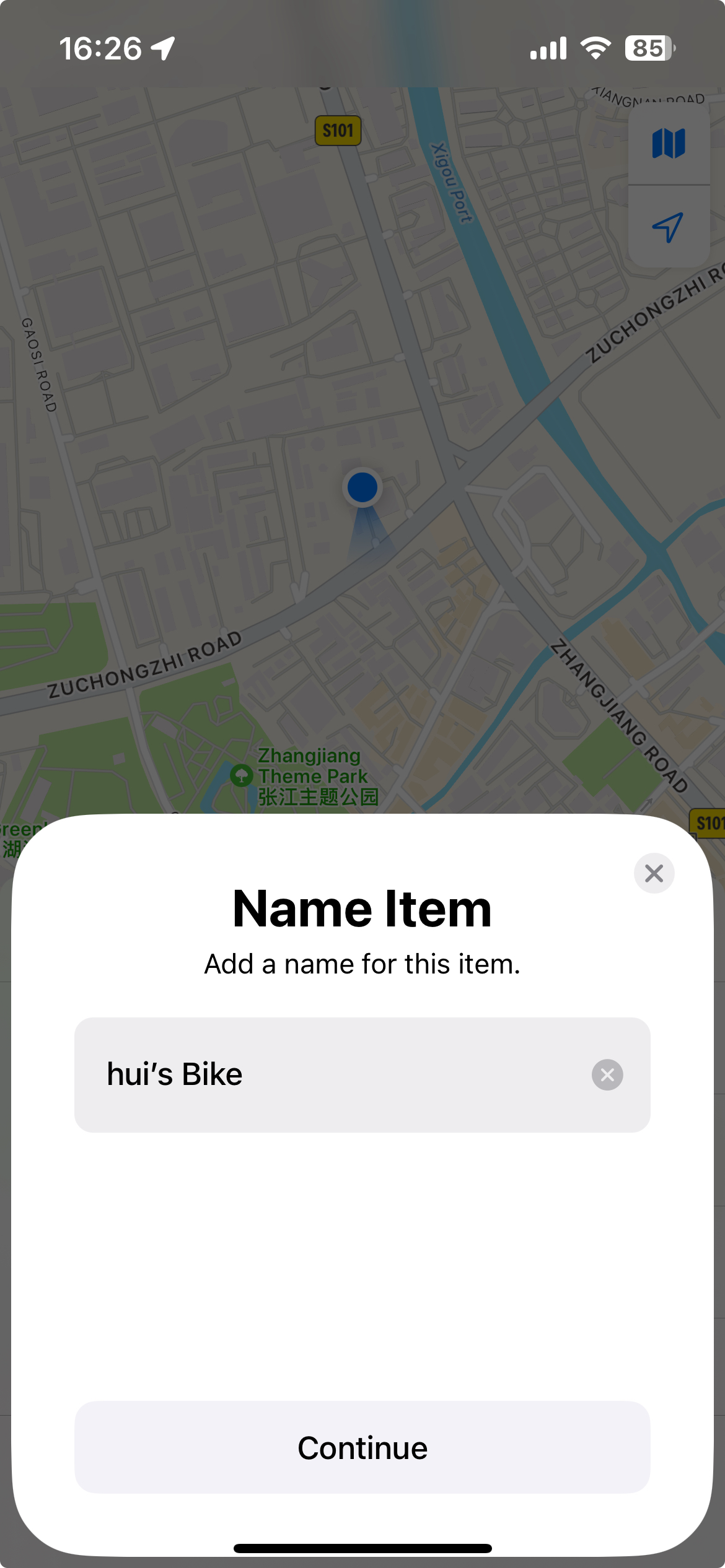
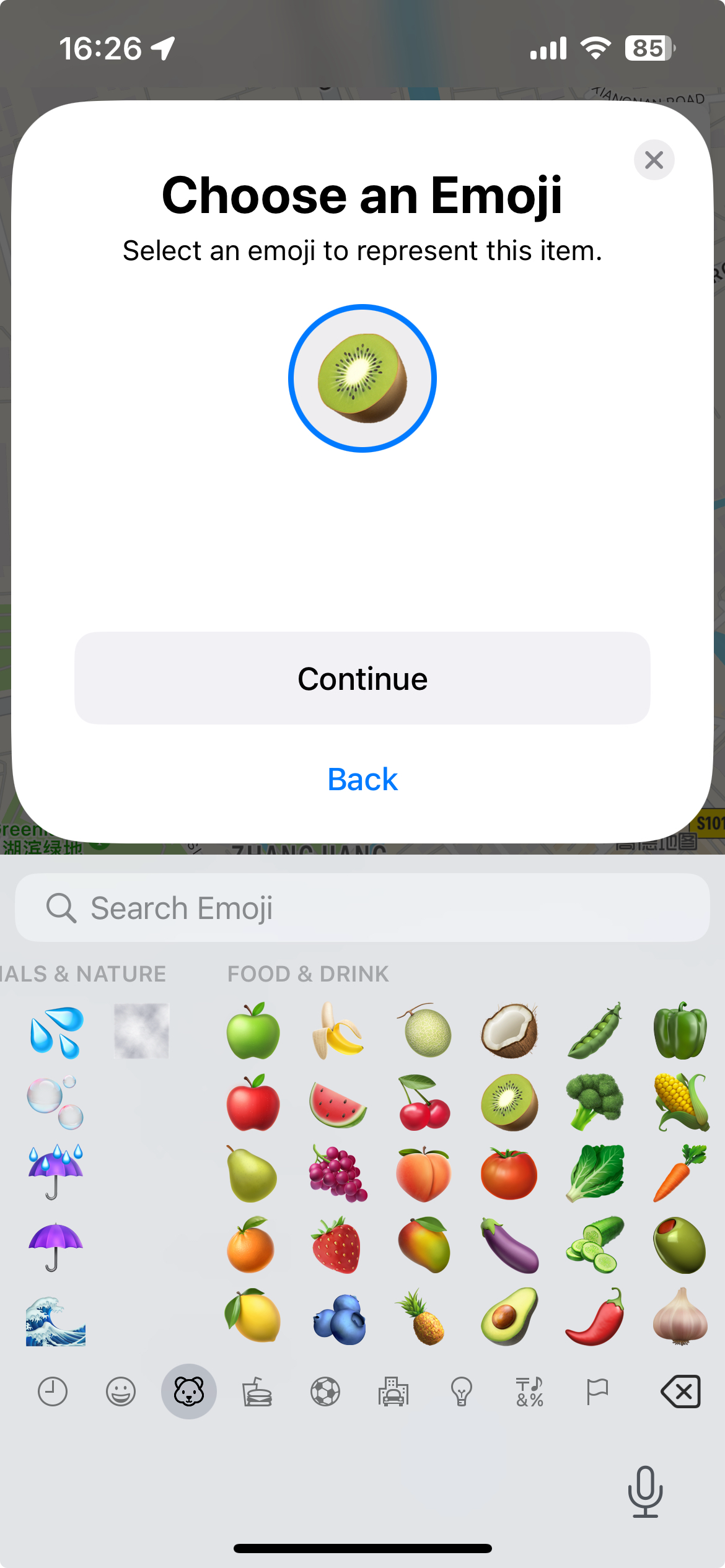
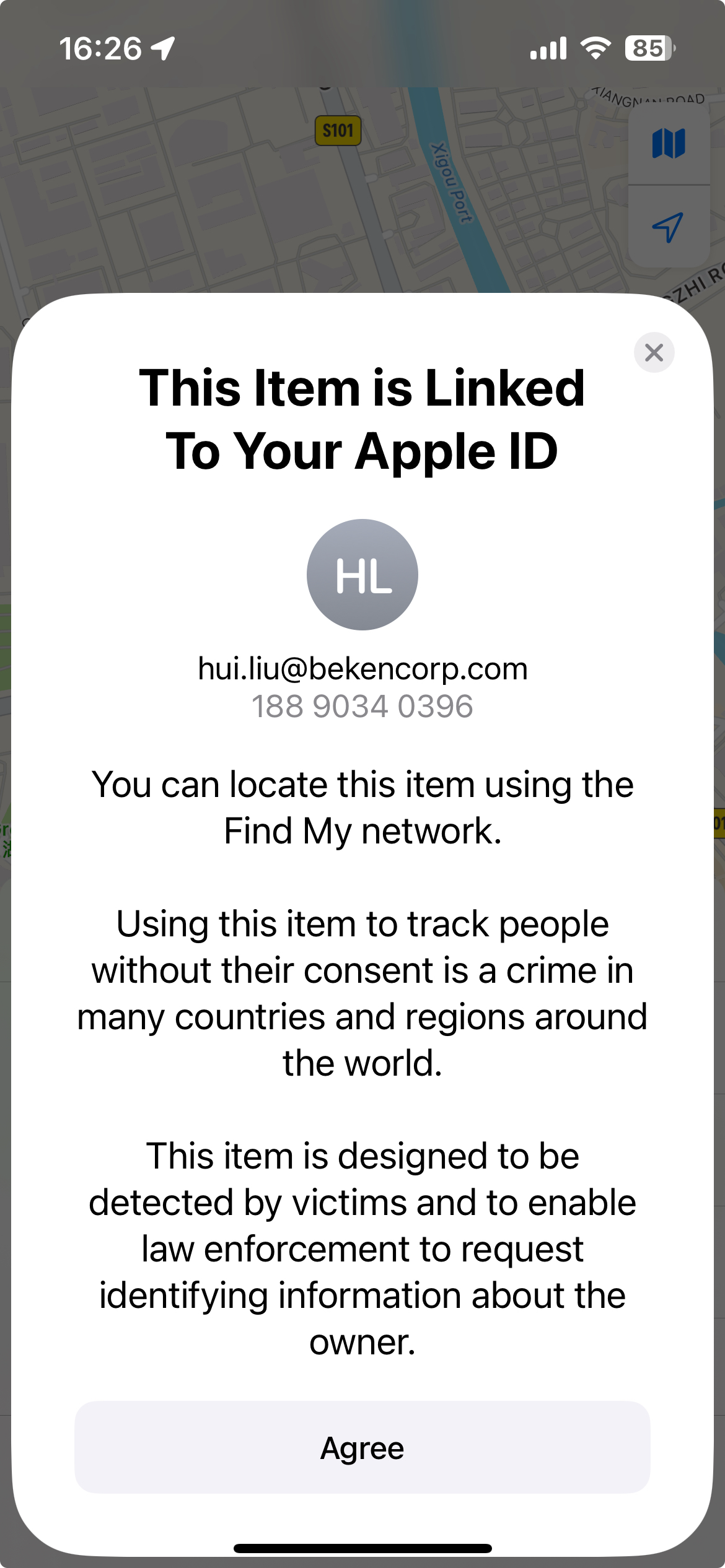
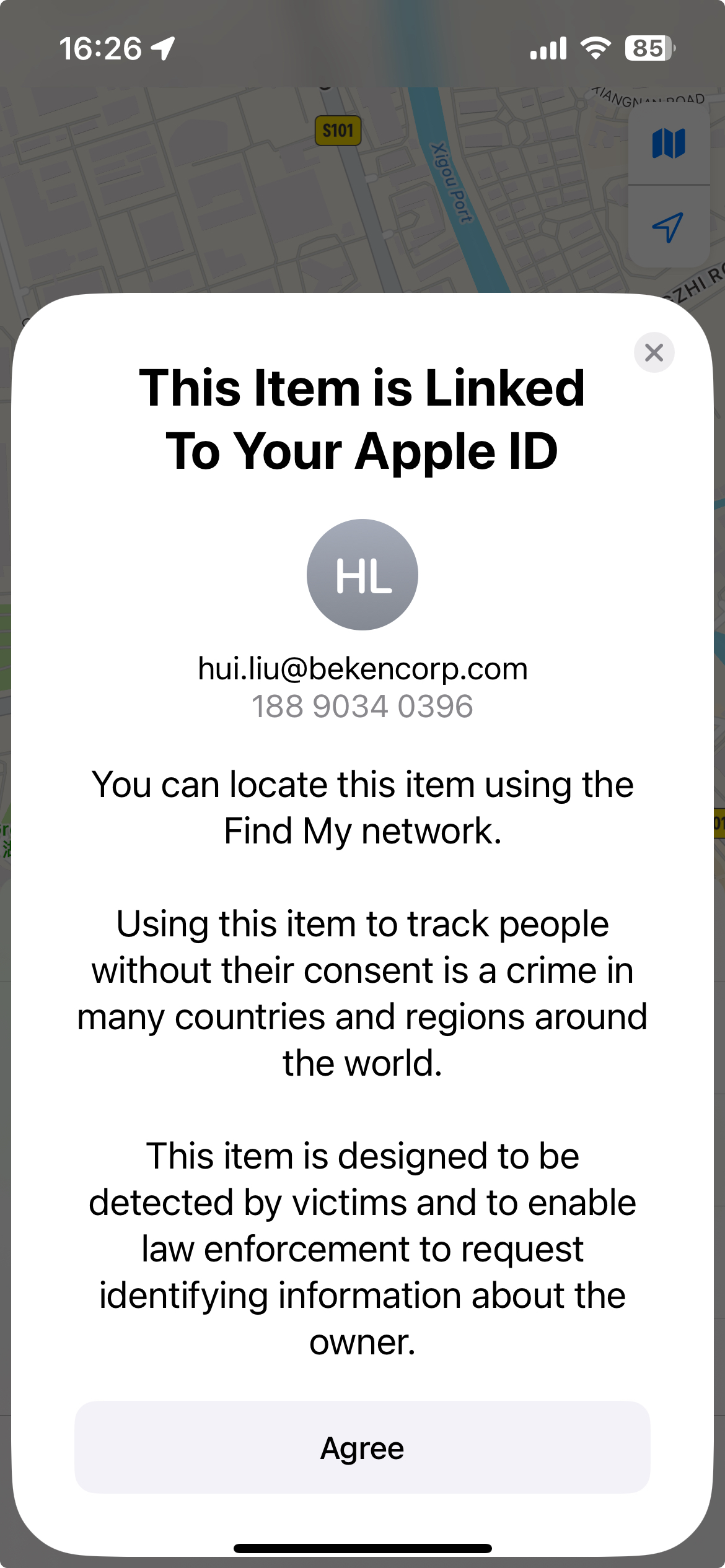
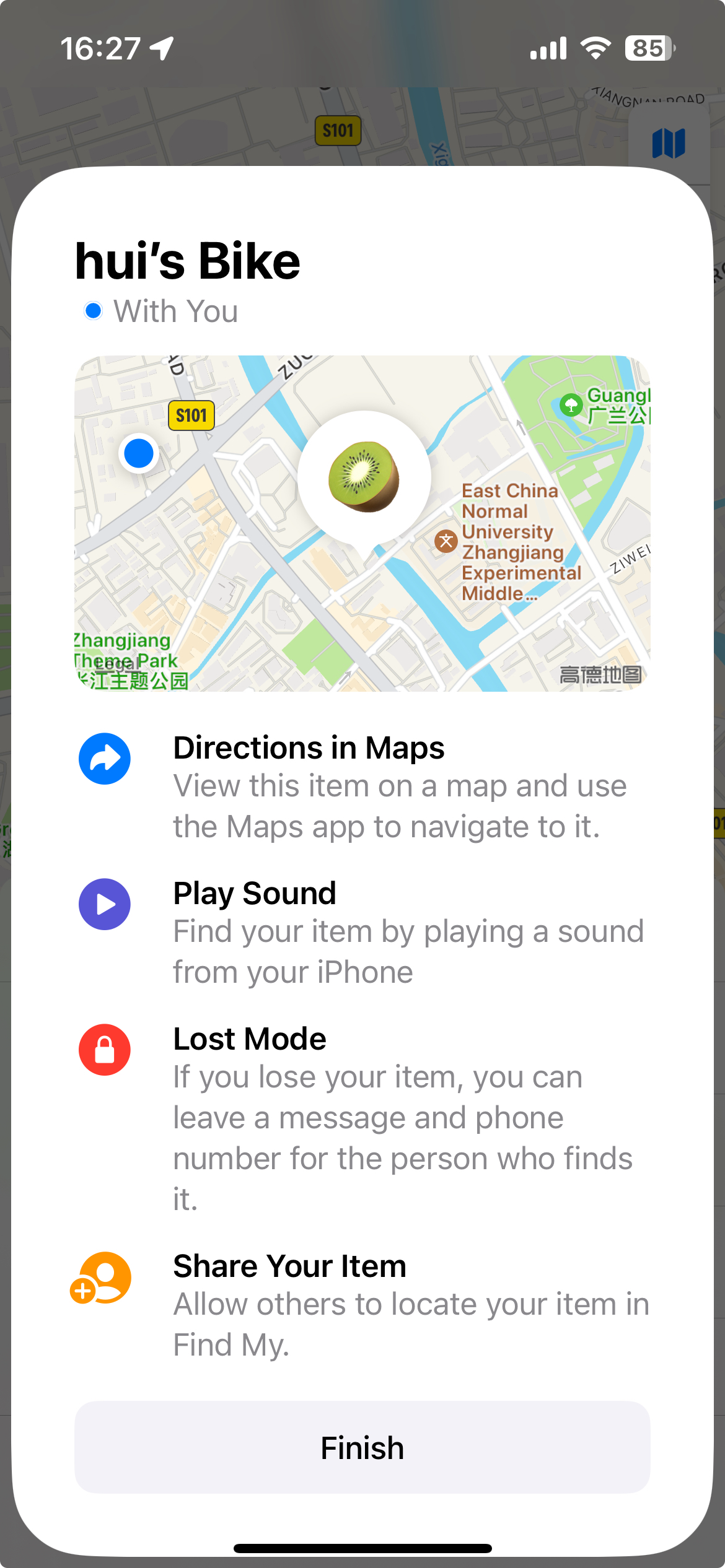
2.Binding with iPhone
The application
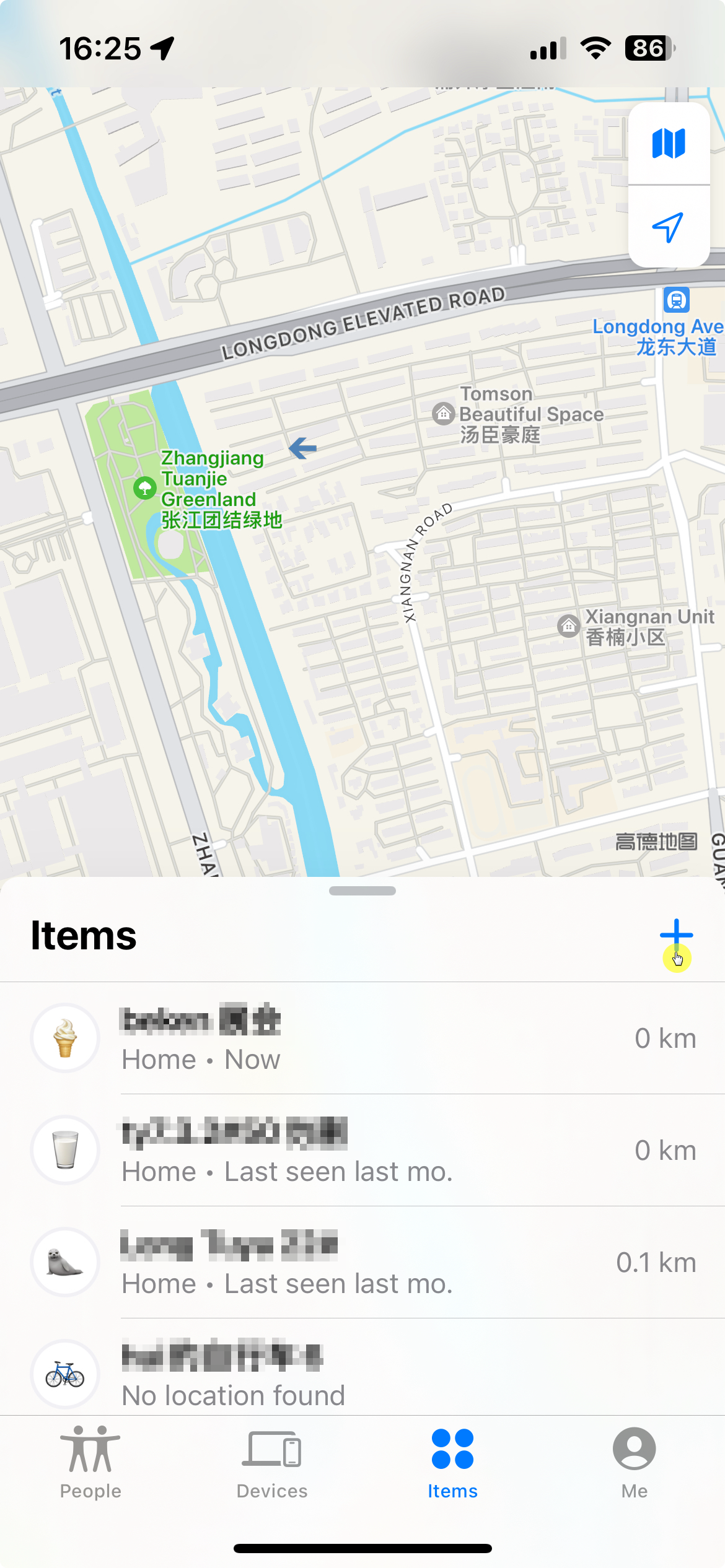
|
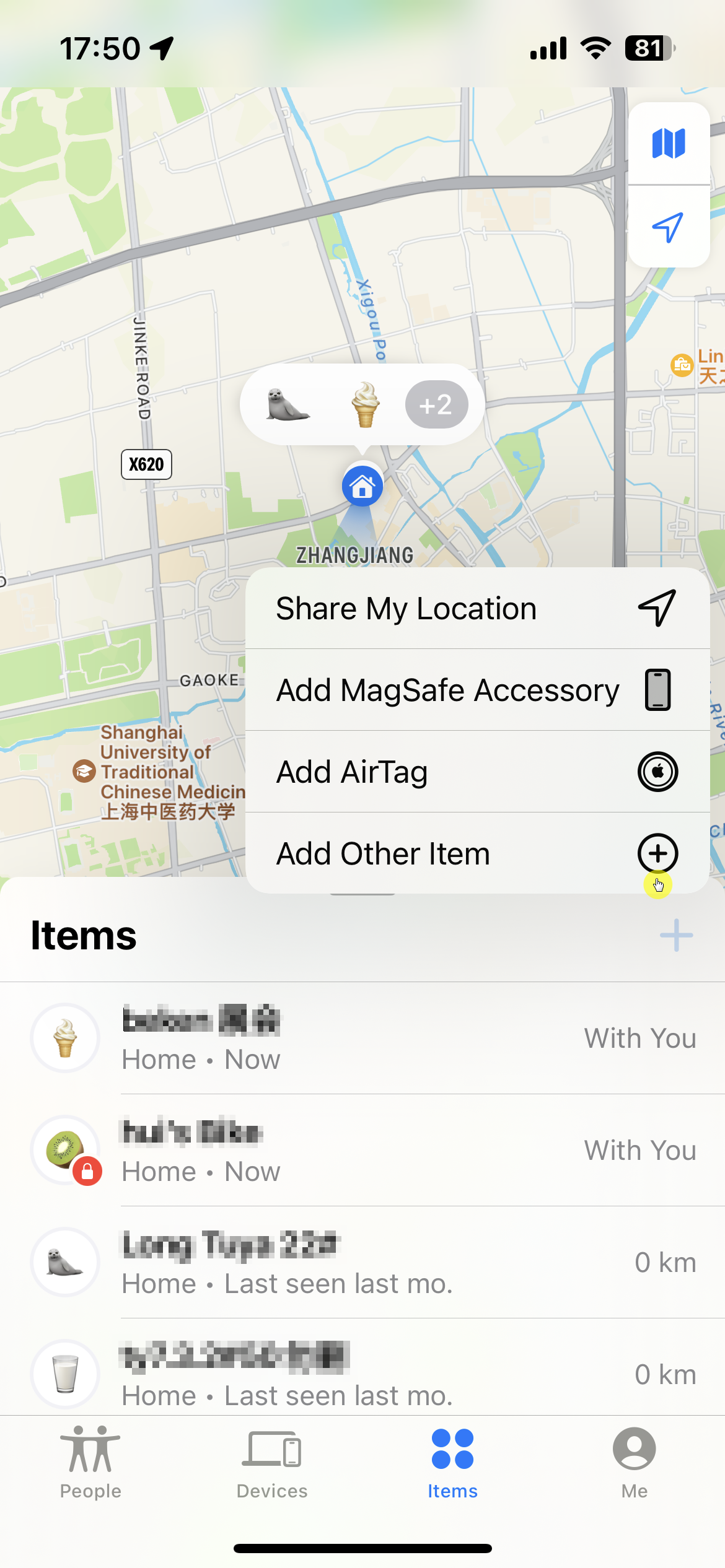
|
|
|
|
|
|
|
3.Find Item function
When you want to find this item, tap “Play sound” and the device will tick for 5 seconds.
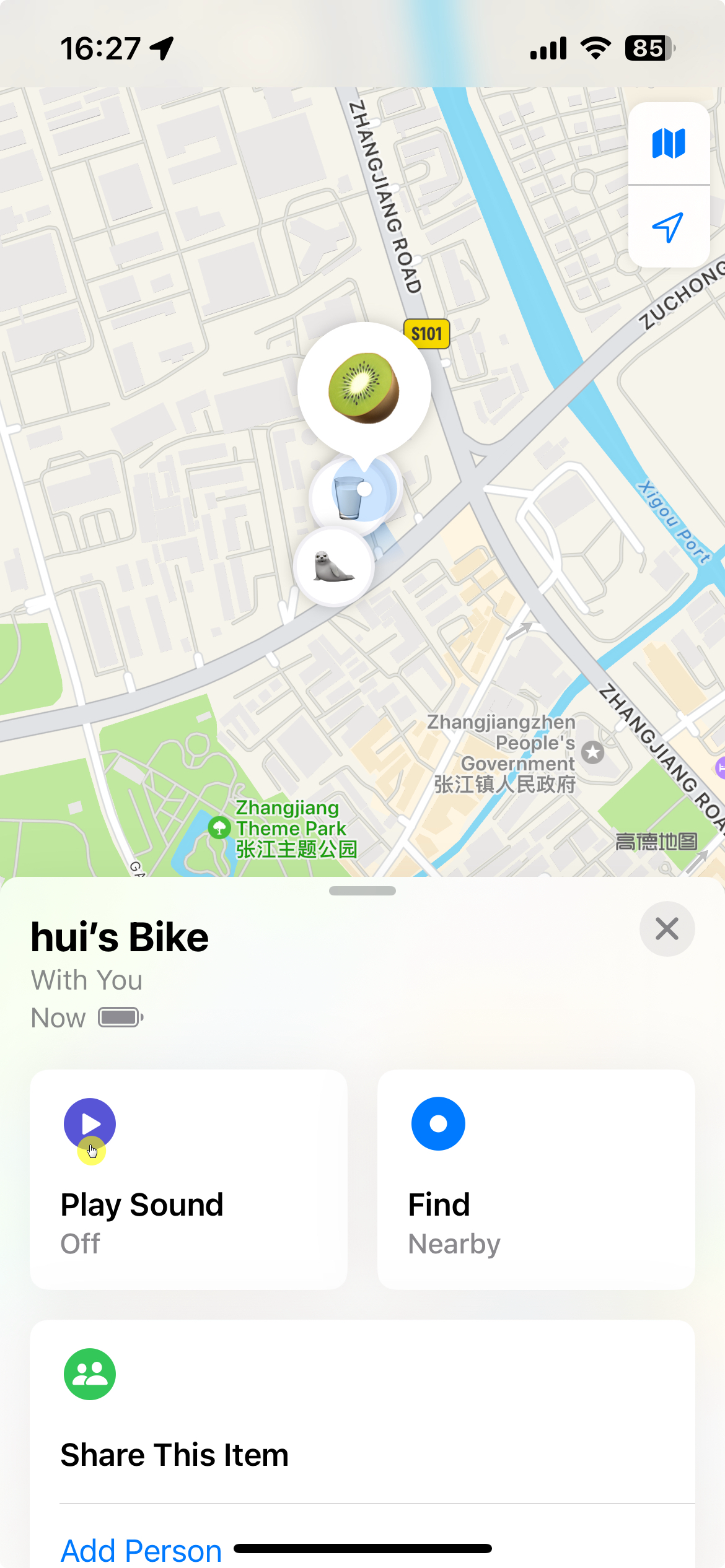
Play sound
4.Notify when left behind
Turn on the “Notify when left behind” feature in the app, the iPhone will be notified when the device is lost.
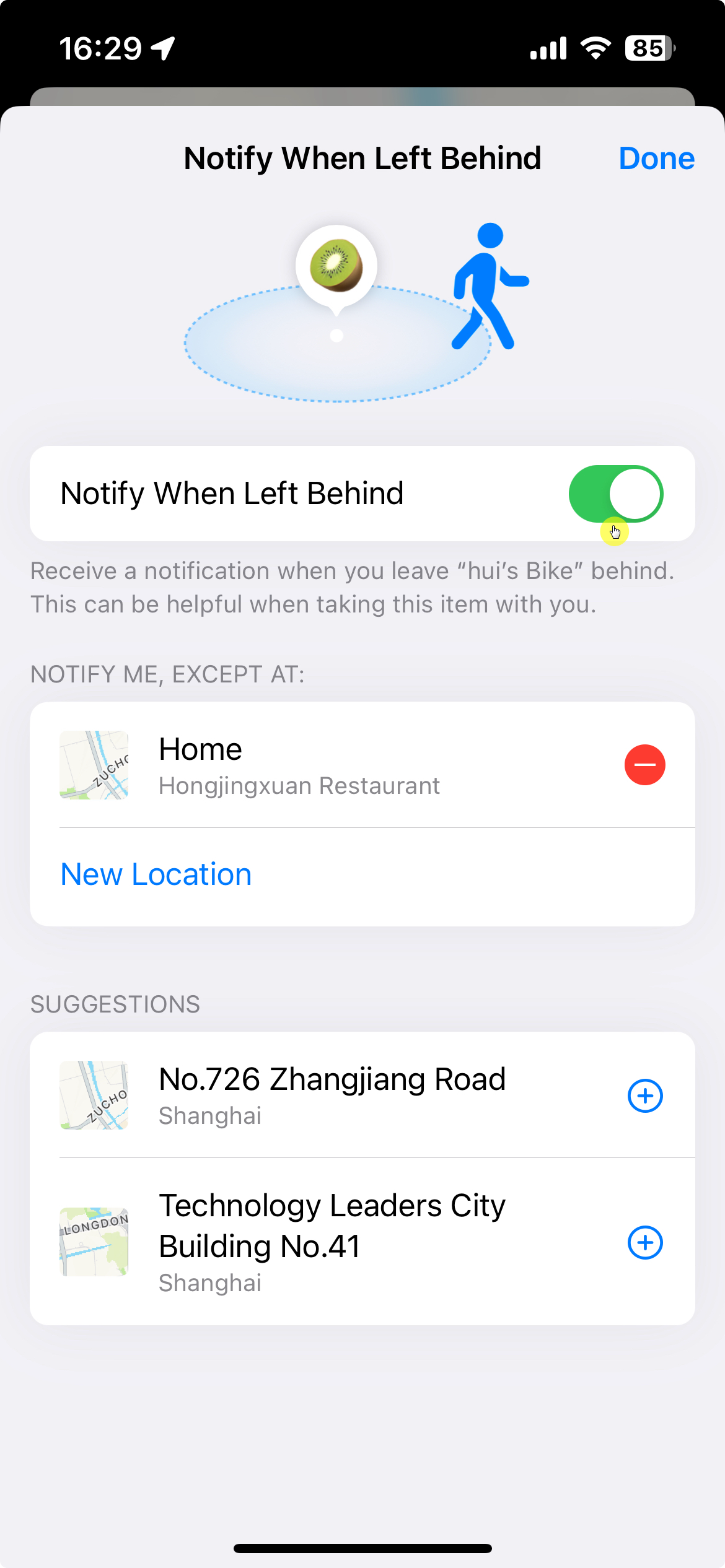
Notify when left behind
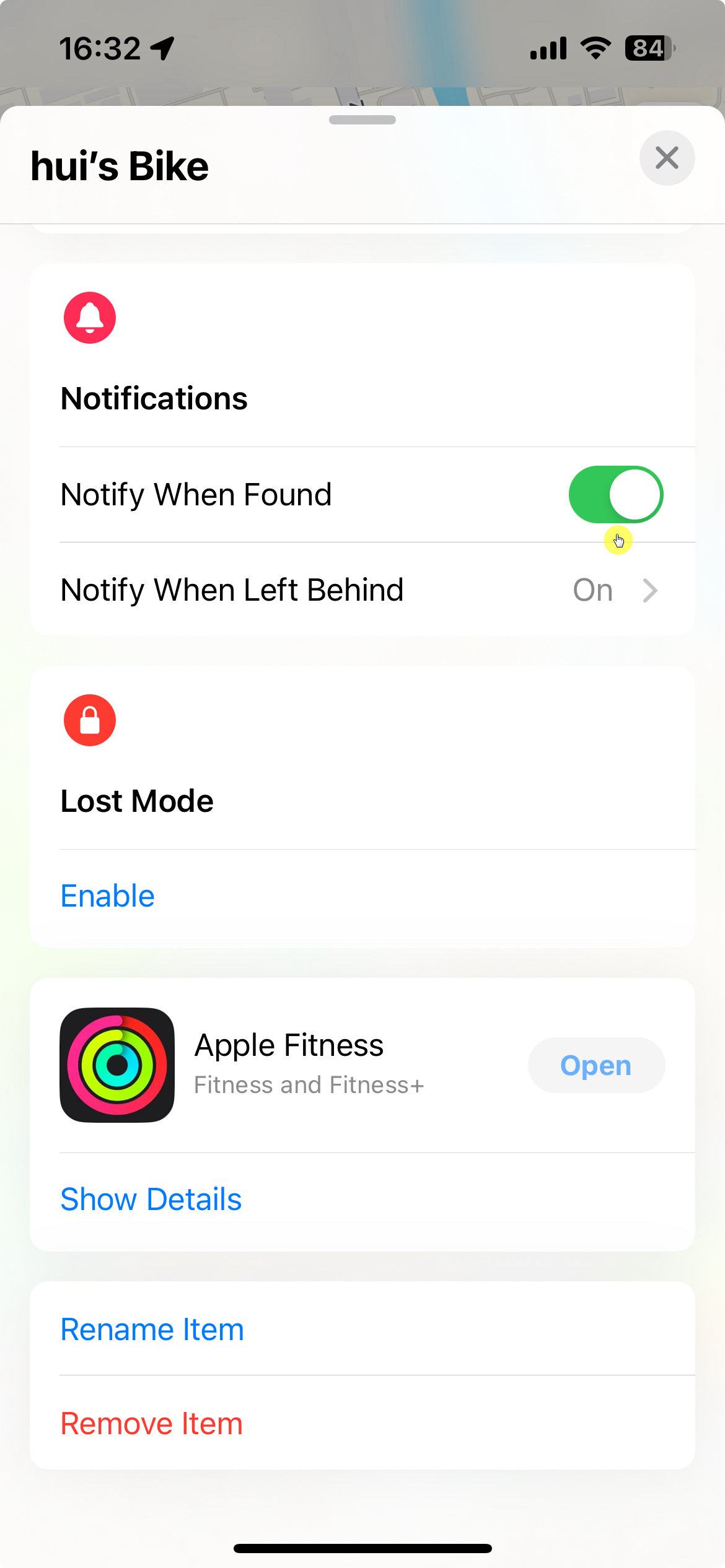
5.Notify when found
Turn on the “Notify when found” function in the APP. When the iPhone is close to the tracker in the disconnected state, the phone will automatically connect to the tracker and receive an instant notification that the devcie is nearby.
Notify when found
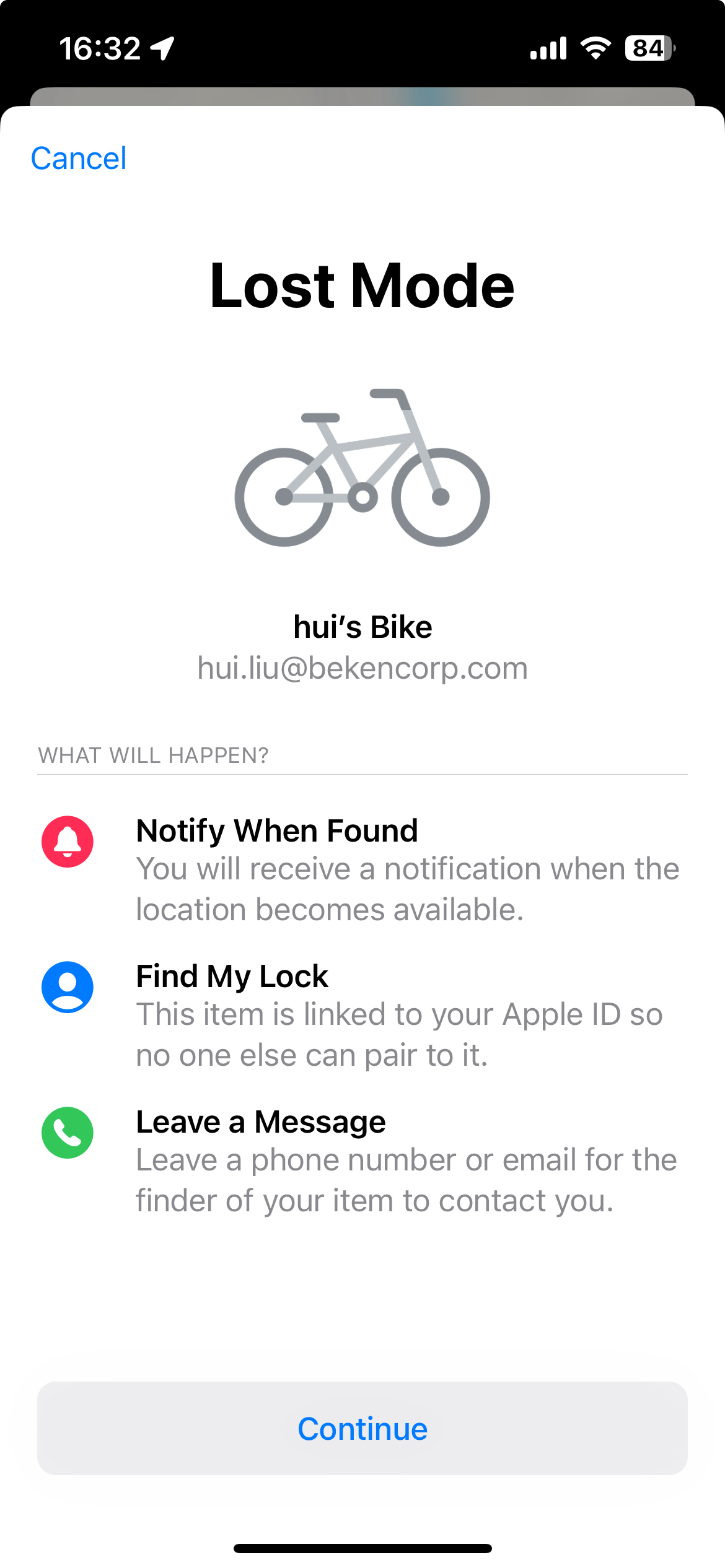
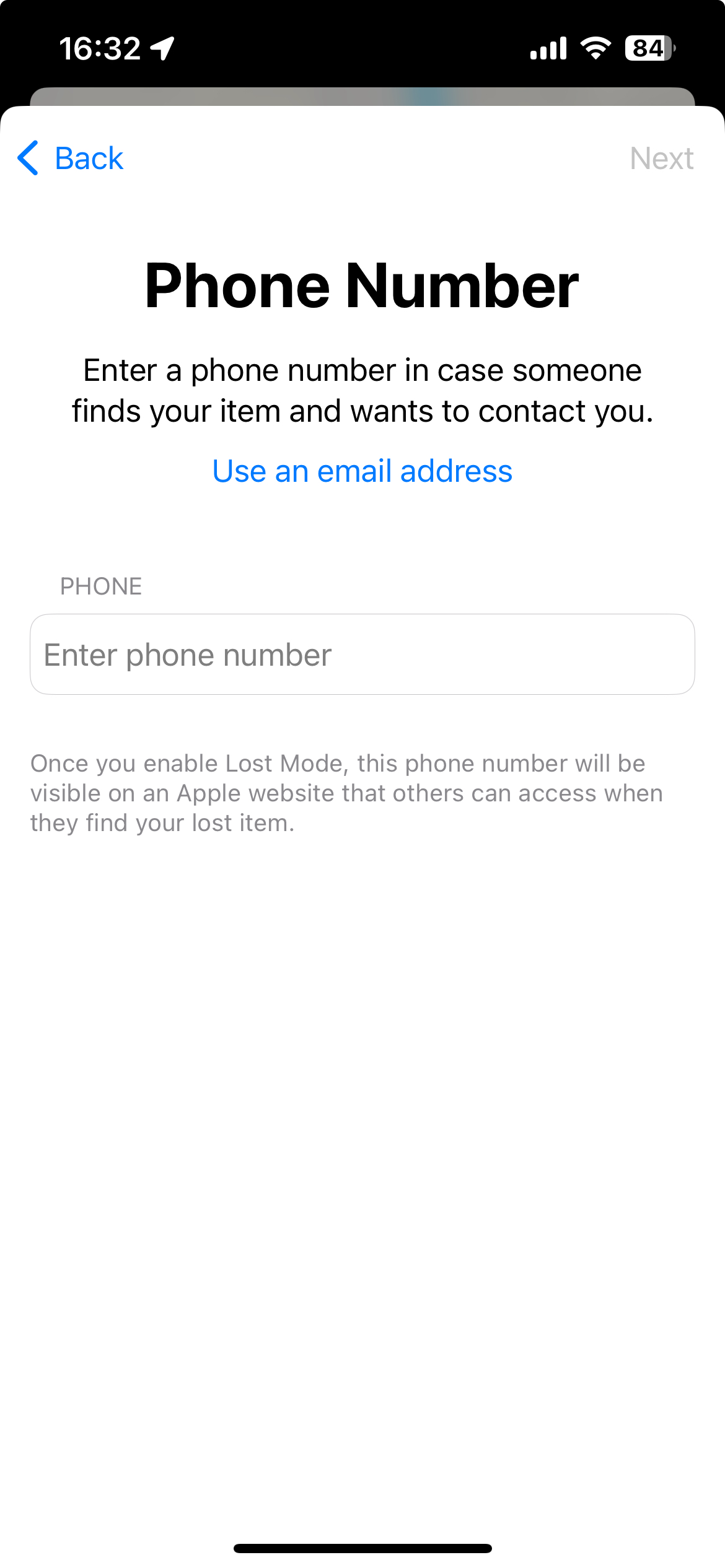
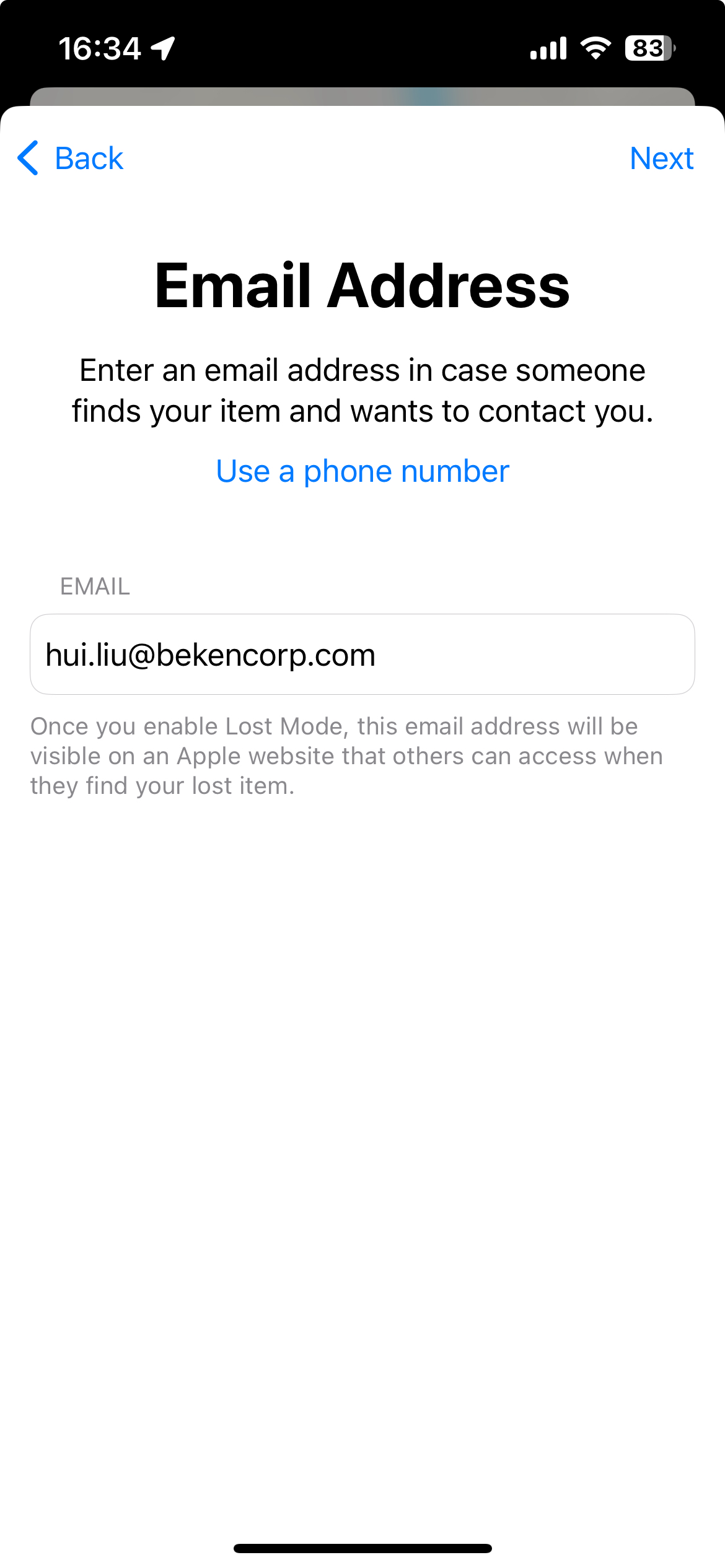
6.Lost Mode Enable
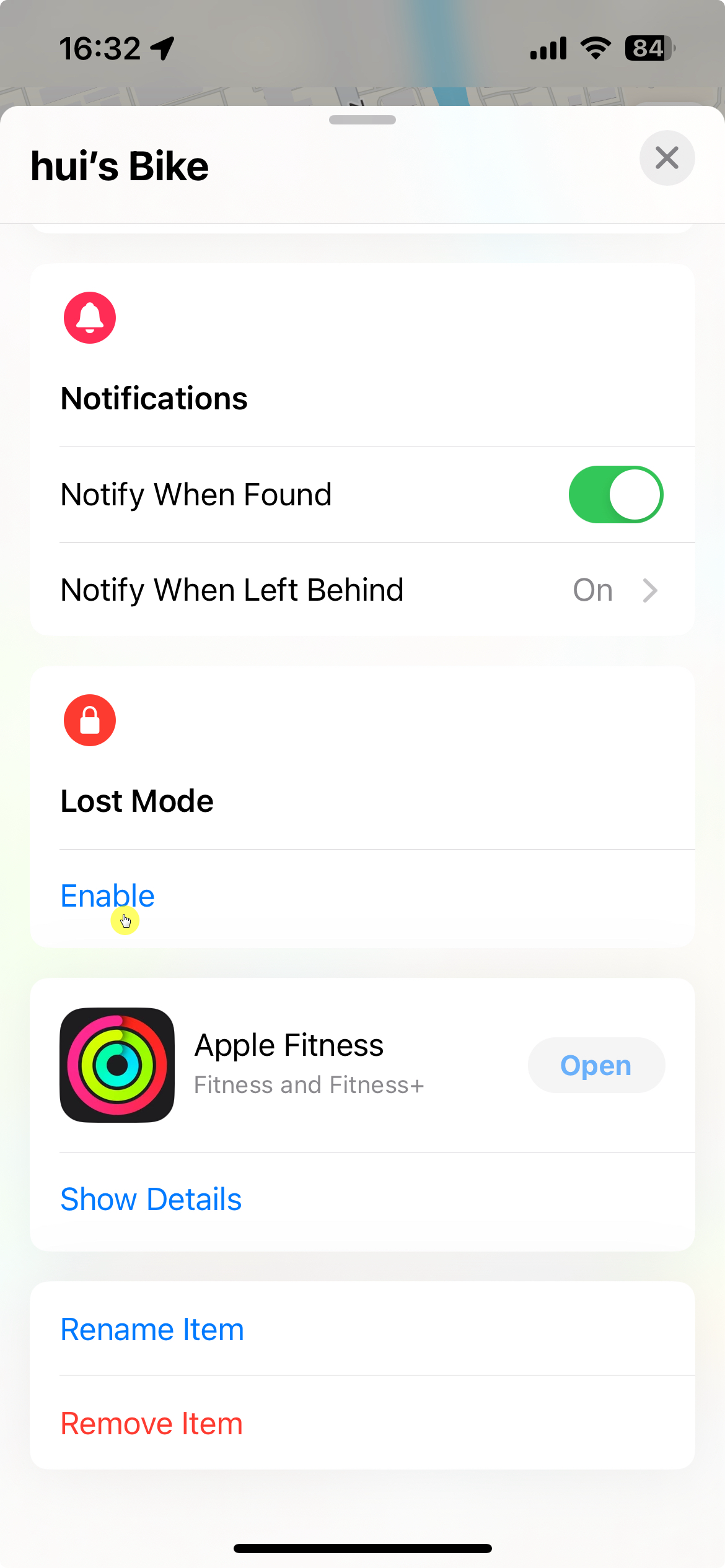
Enable lost mode
|
|
|
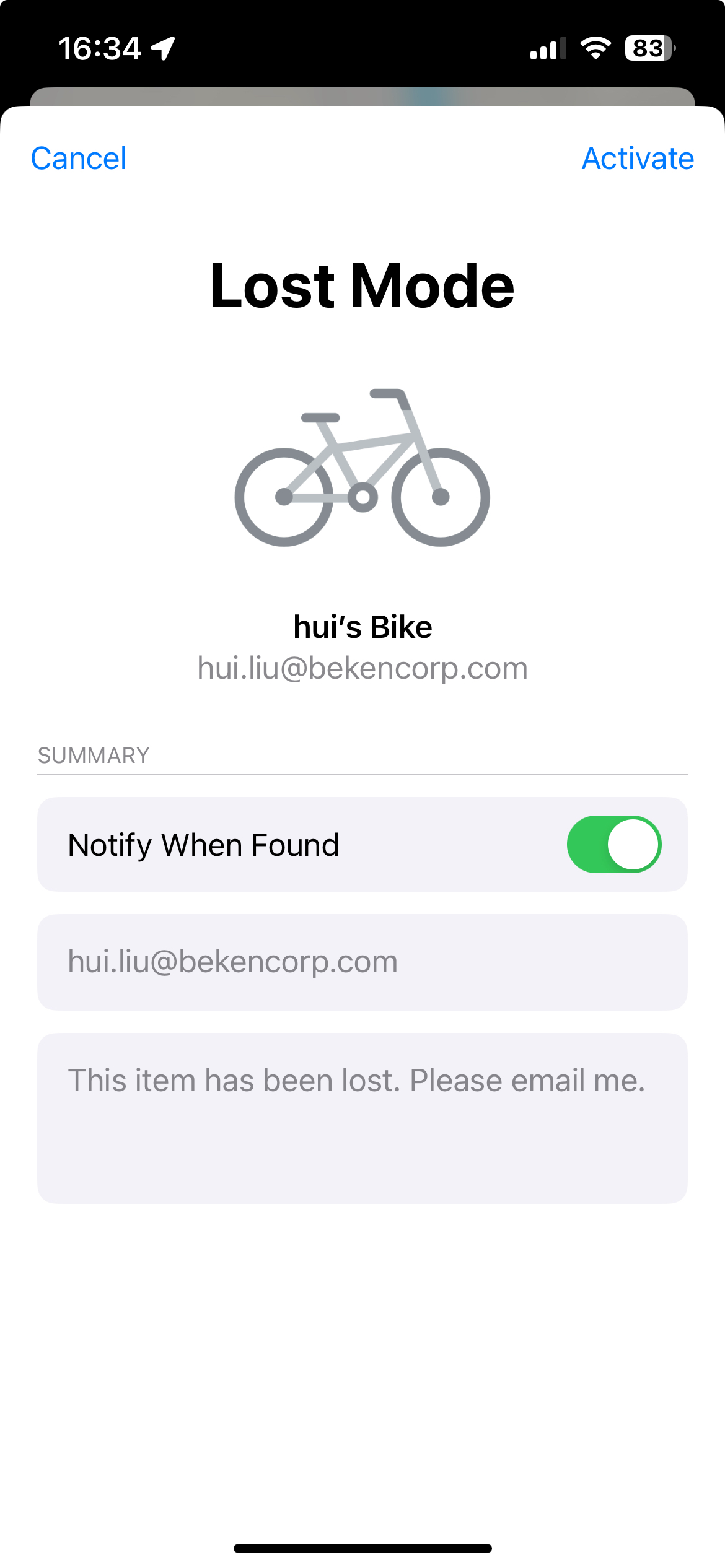
Activate lost mode
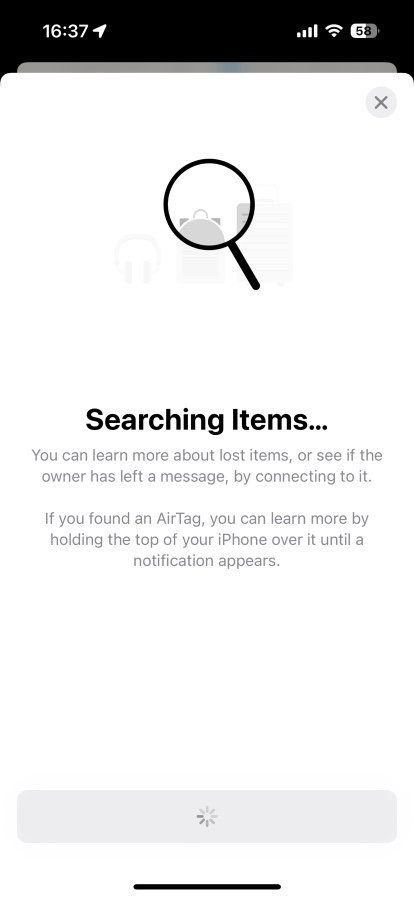
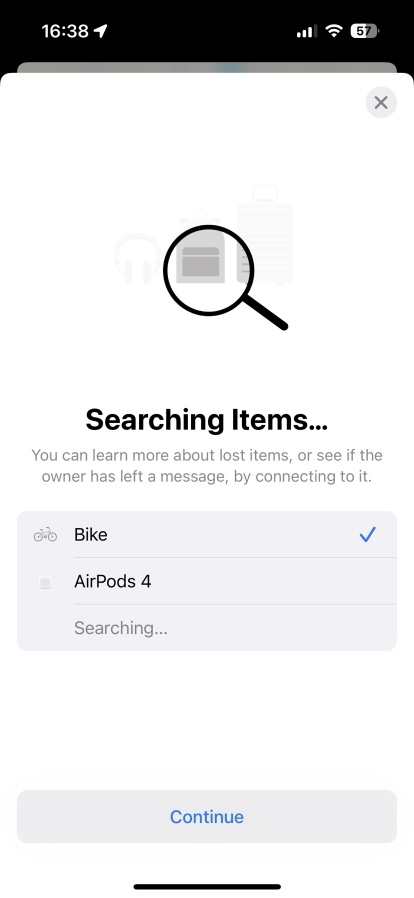
7.Finder queries the owner’s information in lost mode
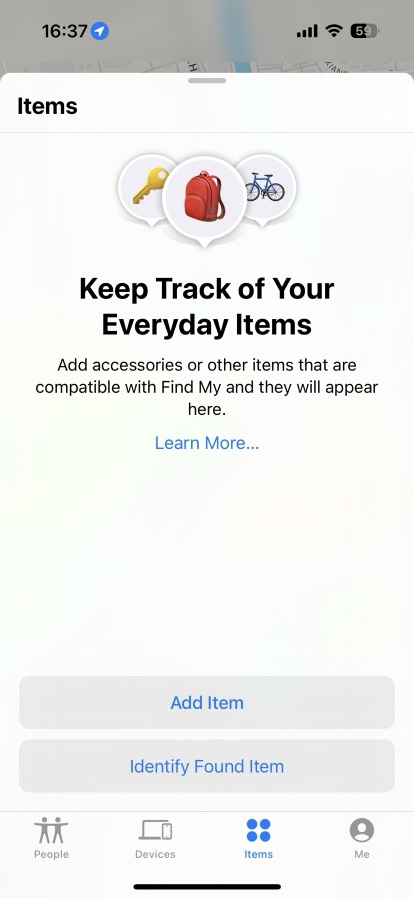
Identify Found Item
|
|
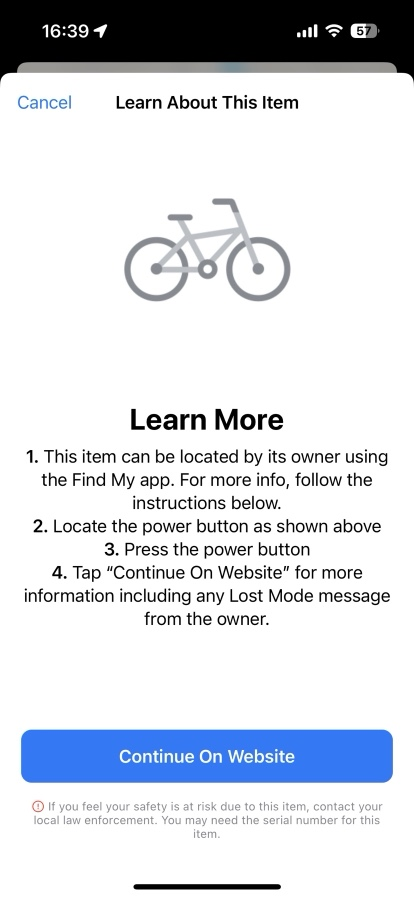
Continue on the website
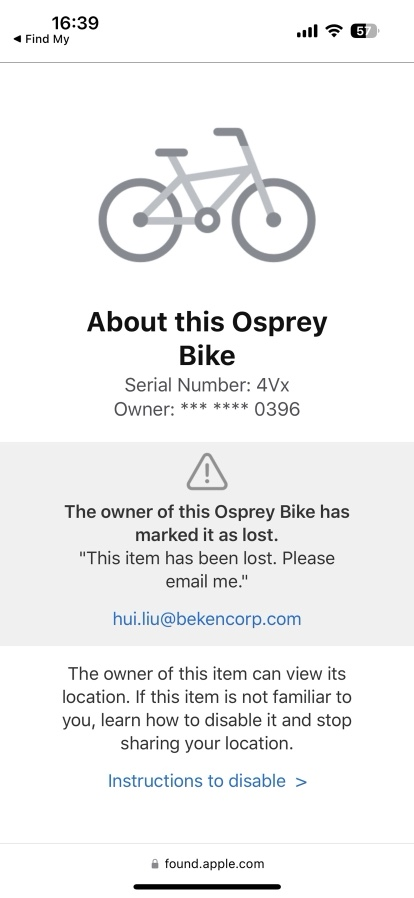
Owner’s contact information
8.Motion detection mode
This mode will automatically turn on after 3 days of separated state. Then the tracker will enter the “waiting to move” state every 6 hours. If it detects movement in the “waiting to move” state, it will sound an alarm for 5 seconds.
9.Remove the binding
- Clear the binding information in the devcie
Keep pressing button on the devcie, when you hear three beeps, continue to hold until you hear a loud beep. It will be restored to factory settings, which will clear the pairing information in the devcie.
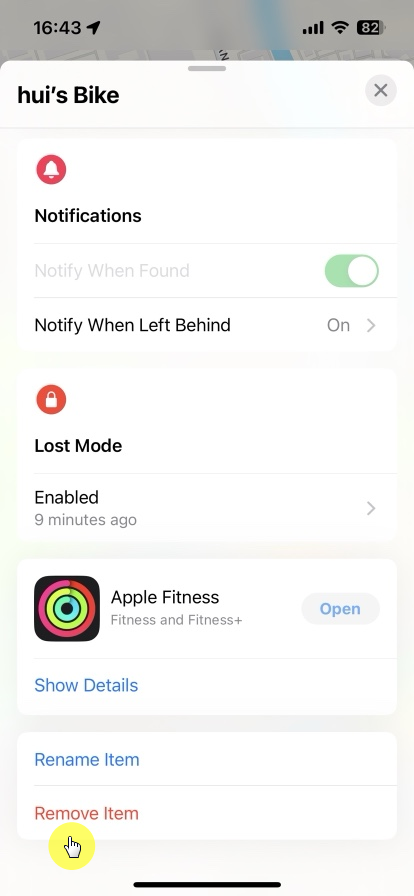
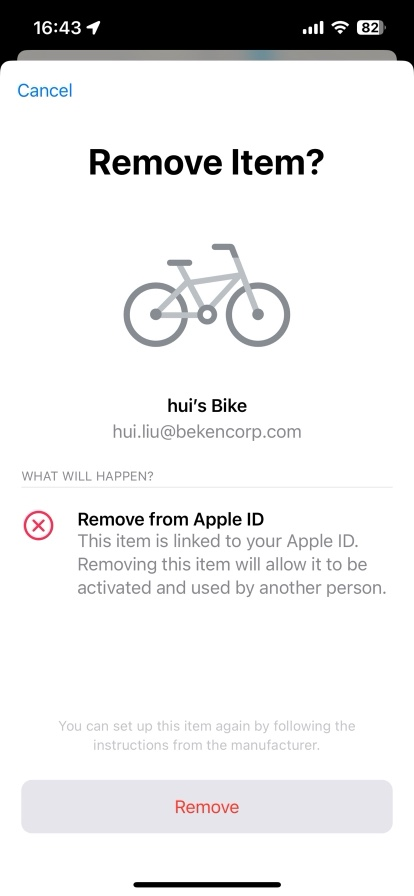
- Remove from mobile phone
Device needs to be connected to the phone When removing it in the Find My APP, so that the pairing information in the devcie can be cleared synchronously. The pairing information in the devcie is still there if removed on disconnected state, and the device do not send pairing broadcasts again, it will not be discovered and bound again.
|
|
Note
- About the buzzer sound
Power on with two beeps;
Connection successful with one beep;
Remove successfully with continuous beeps;
Get serial number, press for 2 seconds with one beep;
Delete pairing information, long press, when you hear three beeps, continue to press until you hear continuous beeps, then the pairing information is deleted successfully;