Test Instructions
1.Apple&Google Finmdy mode switchable
Apple&Google Finmdy can only work in one kind of mode at a time, and can be switched by keep pressing button for 10s during the pairing broadcast stage.
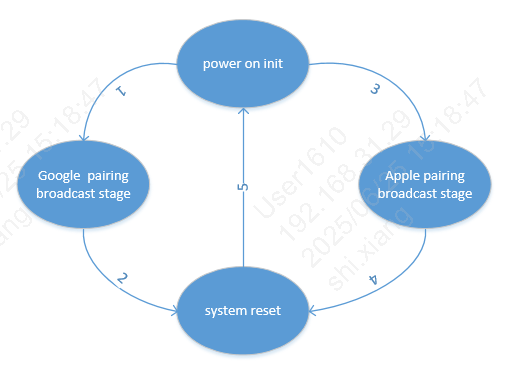
Apple&Google Finmdy state diagram
2.Apple Finmdy mode
Please refer to: Apple FindMy Test Instructions
Note
After the Apple phone deletes the device, Apple Findmy directly enters the pairing broadcast stage, and you can directly press and hold for 10s to trigger the mode switching.
In Apple Finmdy mode, you need to keep pressing the button to get the Serial number. When you hear the fifth beep, release the button to enter this mode.
In Apple Finmdy mode, to delete the pairing information, keep pressing the button. When you hear the eighth beep, release the button, the pairing information will be successfully deleted with a continuous beep sound.
3.Google Finmdy mode
Please refer to: Goole FindMy Test Instructions
Note
After the Android phone deletes the device, Google Findmy will directly enter the Deep Sleep ultra-low power state, which needs to be woken up by short pressing the button once, and then enter the pairing broadcast stage after waking up.