3. Quick Start
This document uses the BK7258 development board as an example to show how to:
Create a new project
Design the interface
Export and use code
Build and flash firmware
3.1. Preparation
Hardware:
BK7258 development board (Board introduction, Purchase link)
Serial flashing tool
3.2. Create a New Project
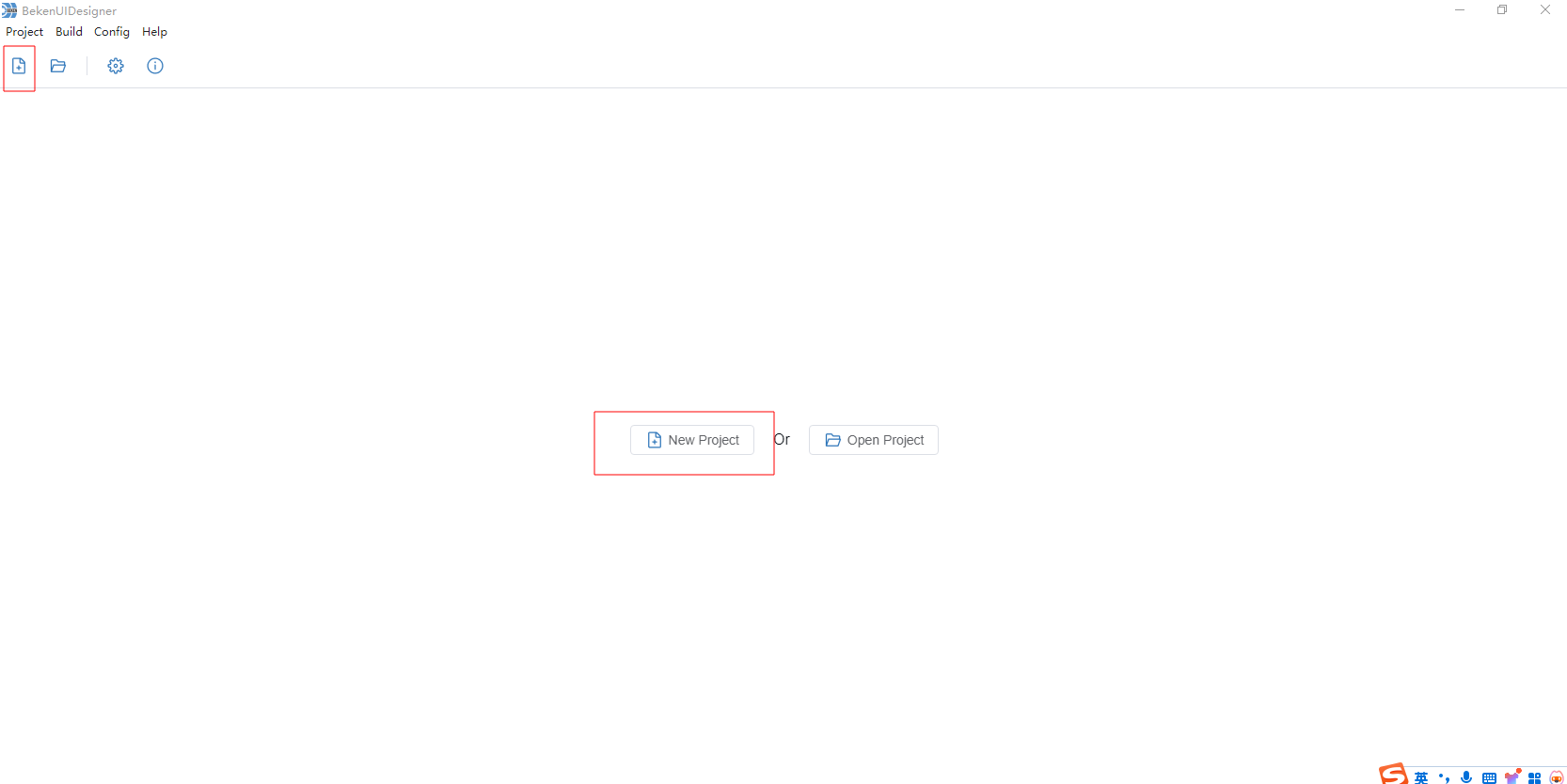
Click the New button on the toolbar, select a project save path, and click OK. The directory must be empty, and the directory name should not contain special characters or spaces.
3.3. Interface Design
Canvas settings
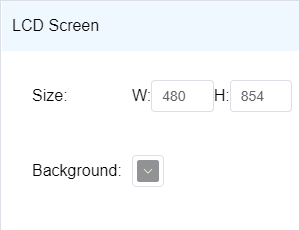
Before designing the interface, set the canvas size according to the target LCD screen size and adjust the canvas background color.
Add widgets
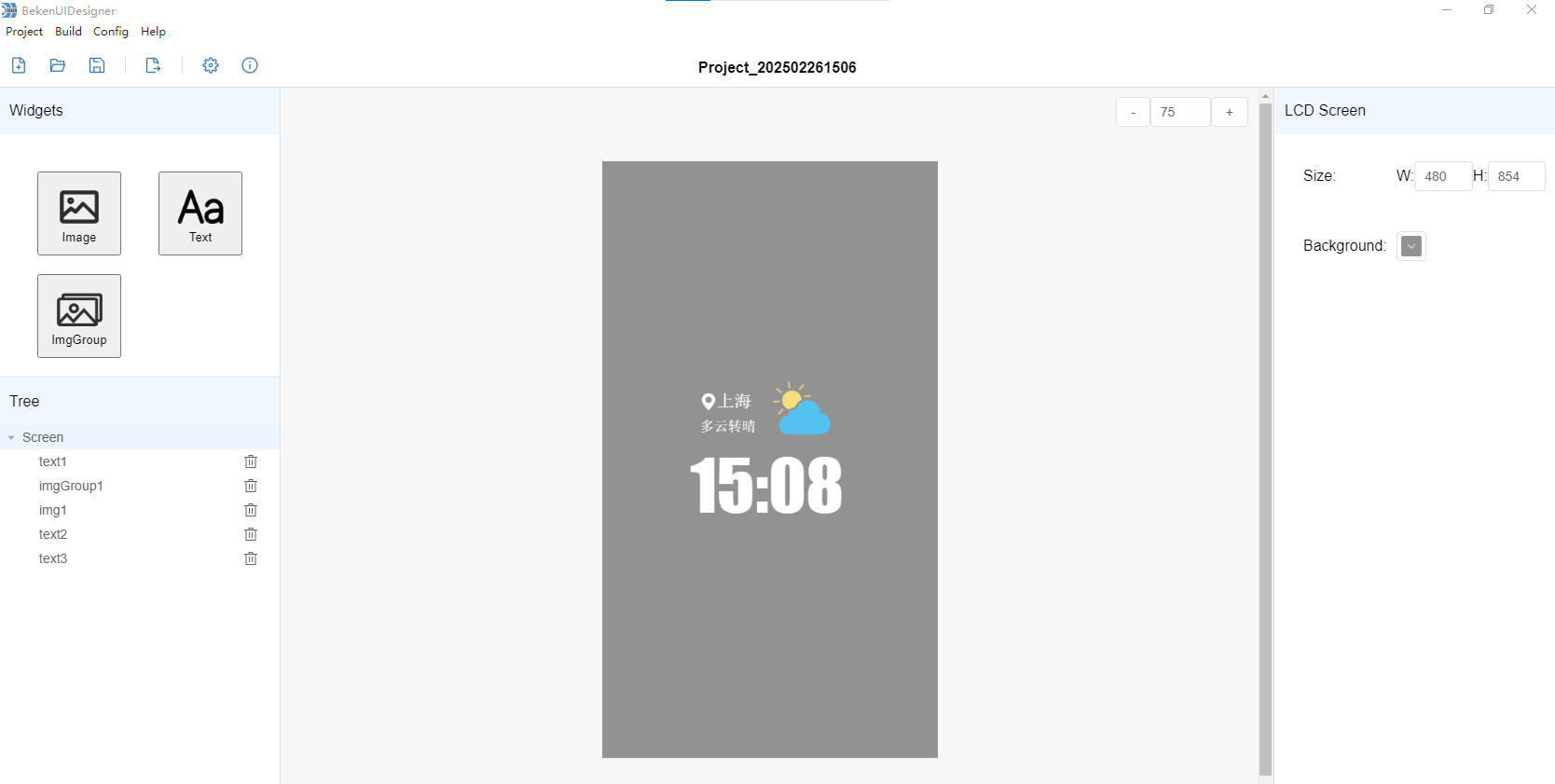
Click a widget in the widget bar to add it to the canvas. Modify its position, size, and properties as needed to complete the overall interface design.
3.4. Export and Use Code
After the interface design is complete, click Export. The software starts the export process and automatically opens the export directory when the export finishes. The export directory contains the following four files:
blend.h: Header file
bk_font.c: Font blending file
bk_img.c: Image blending file
blend_dsc.c: Interface description file. Edit this file if you need to modify the specific display content.
Copy these files to the projects\media\doorbell\main\src\assets path in the AVDK project.
Note
For details about blending files and blending APIs, see OSD Video Overlay.
3.5. Build and Flash Firmware
Build the project
After putting the exported files into the project, run the following command to build:
make bk7258
Flash
Armino supports firmware flashing on Windows and Linux. Refer to the guide in the flashing tool for details. On Windows, Armino currently supports UART flashing.
For the flashing process, see IDK Getting Started and IDK.
3.6. Preview
After flashing is complete, use the BekenIoT App to configure the network for the development board and enable the camera and LCD display. For BekenIoT App usage, see BekenIoT App documentation.
Then enter the following serial command to quickly preview the blending effect. The camera image, text, and images are blended on the LCD screen:
blend open
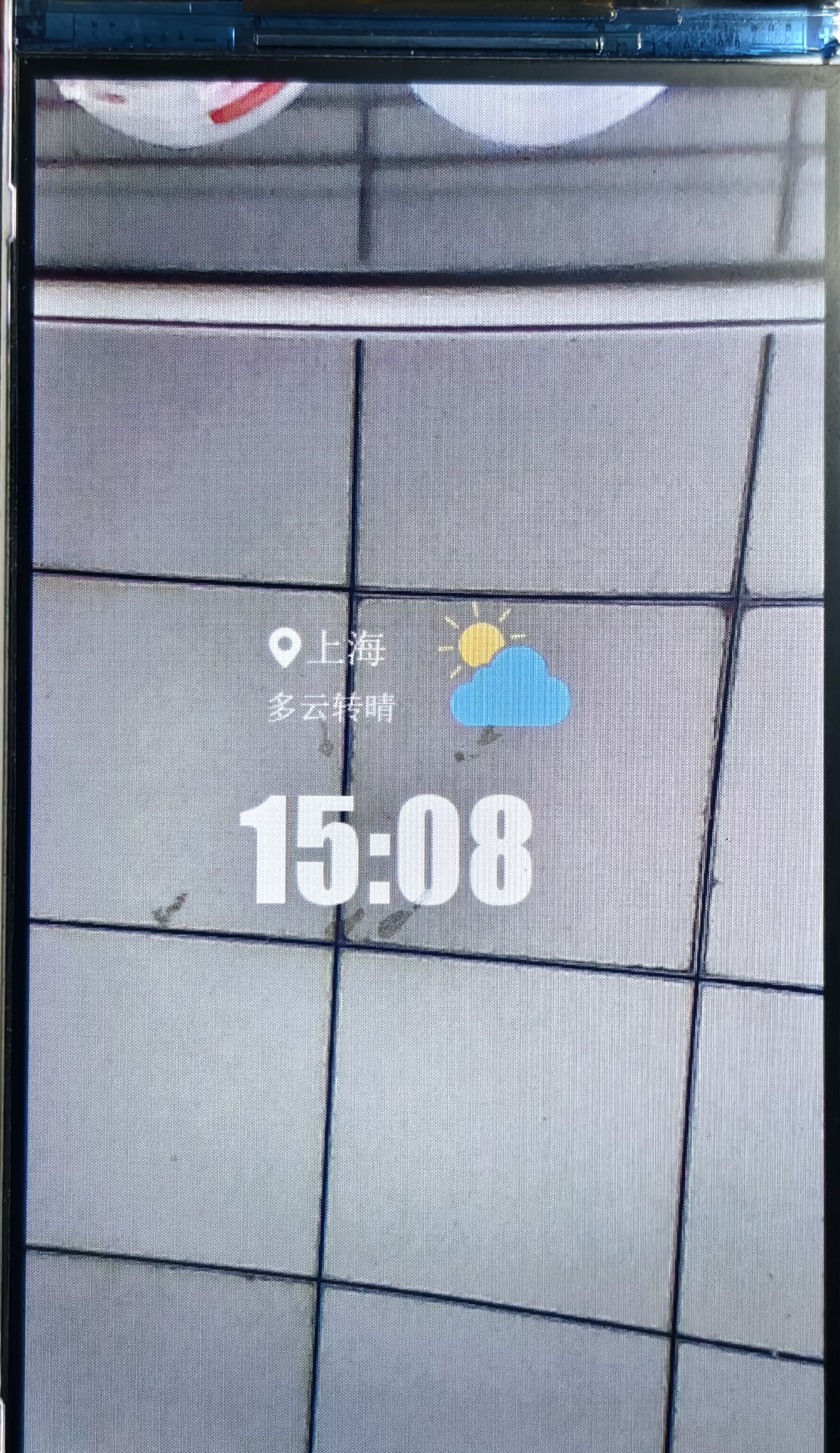
The LCD blending effect is shown below.