4. Interface Introduction
4.1. Software Interface
The BekenUIDesigner interface consists of the action bar, widget bar, widget tree, canvas area, and property panel, as shown below.
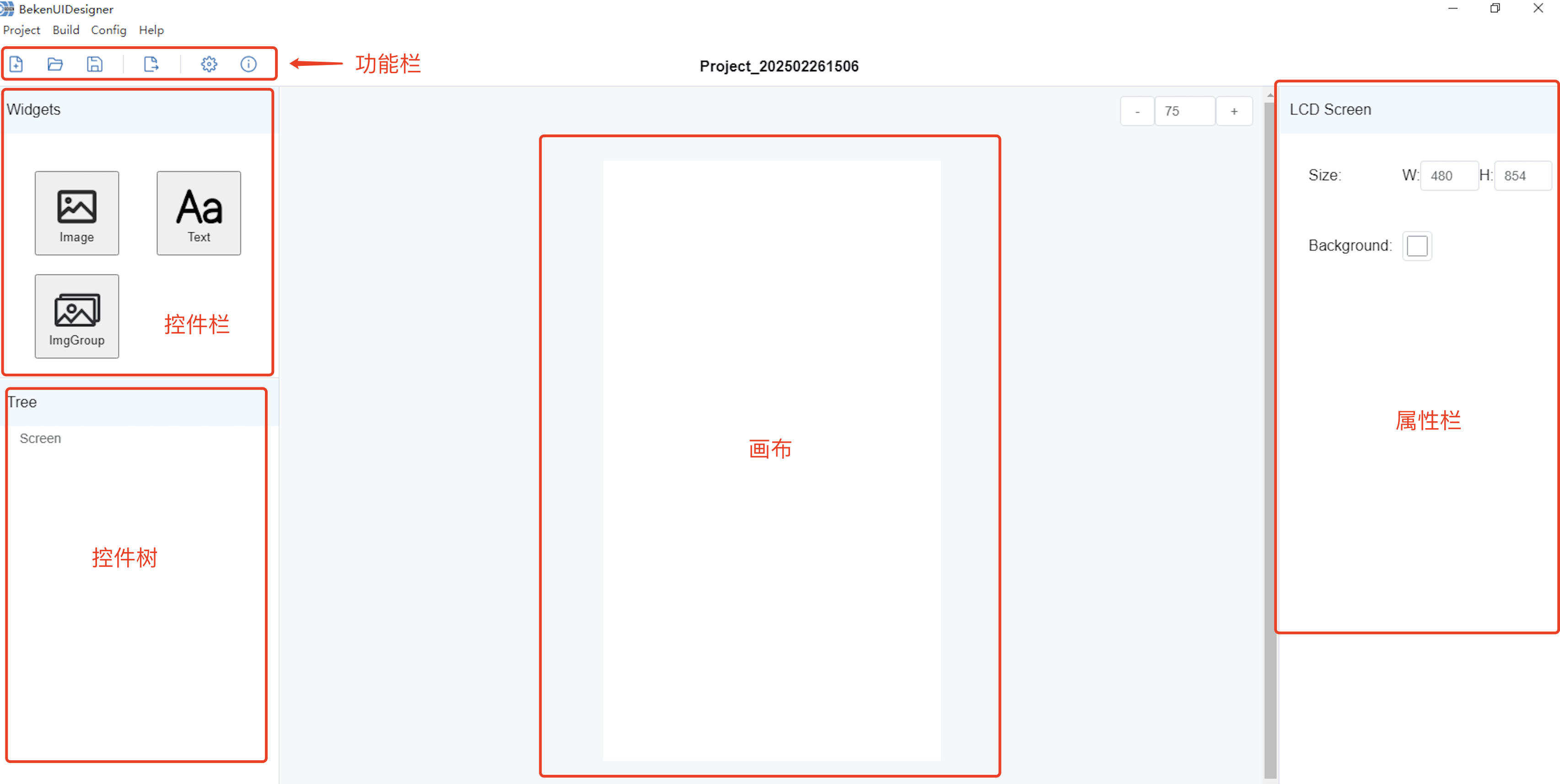
BekenUIDesigner interface
4.2. Action Bar

New Project
Click the
 icon in the action bar, select the project storage path, and click OK. The directory must be empty, and the directory name should not contain special characters or spaces.
Open Project
Click the
 icon in the action bar, select a project file named project.bkproj, and click OK to open the project.
Save
Click the
 icon in the action bar to save the current design progress.
Export
Click the
 icon in the action bar to export target files according to the interface design.
Configuration
Click the
 icon in the action bar to open the global configuration page.
4.3. Widget Bar
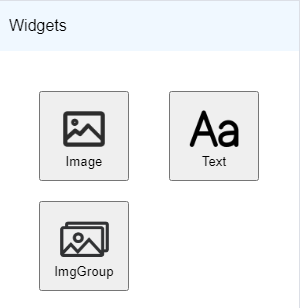
Click the Image widget or Text widget in the widget bar to add a new widget to the canvas.
4.4. Widget Tree
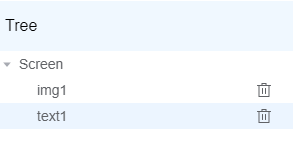
The widget tree displays the widgets that have been added to the current canvas. Click a widget in the tree to select it, or click the delete icon to delete the corresponding widget.
4.5. Property Panel
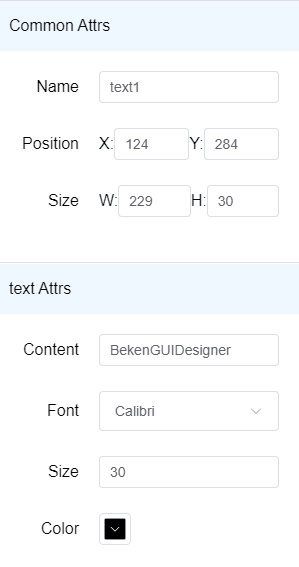
The property panel displays the properties of the currently selected widget. You can adjust the properties to control the display position and style of the widget.
4.6. Canvas
The canvas displays all widgets created in the current project. Click a widget to select it, drag the selection frame around the widget to resize it, or drag the widget to move it.