Getting Started
This guide will help you quickly get started with BEKEN LVGL UI Designer and create your first UI project in 5 minutes.
🎯 Create Your First Project
Step 1: Launch the Application
When you first launch BEKEN LVGL UI Designer, you will see the home page with the following options: - New Project - Create a new UI project - Import Project - Import an existing project - Recent Projects - Quick access to recently used projects
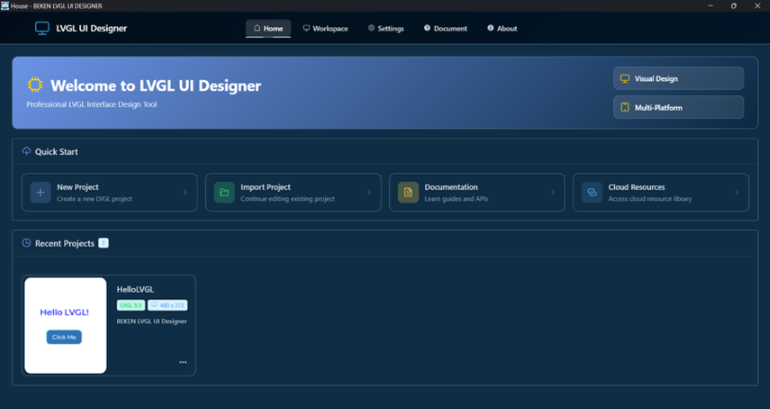
Step 2: Create a New Project
- Click the "New Project" button
- In the dialog that appears, select a project template:
- Blank Project - Start from scratch
- Example Template - Use a preset example project
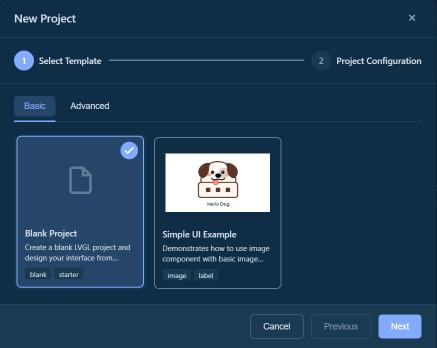
- Configure project information:
- Project Name: Name your project (only numbers, letters, and underscores allowed)
- Save Location: Choose the folder to save the project
- Screen Size: Set the screen resolution of the target device (e.g., 480x272)
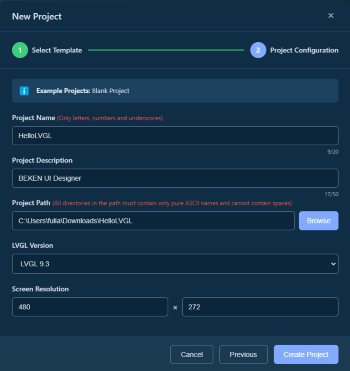
- Click the "Create" button
Step 3: Understand the Workspace
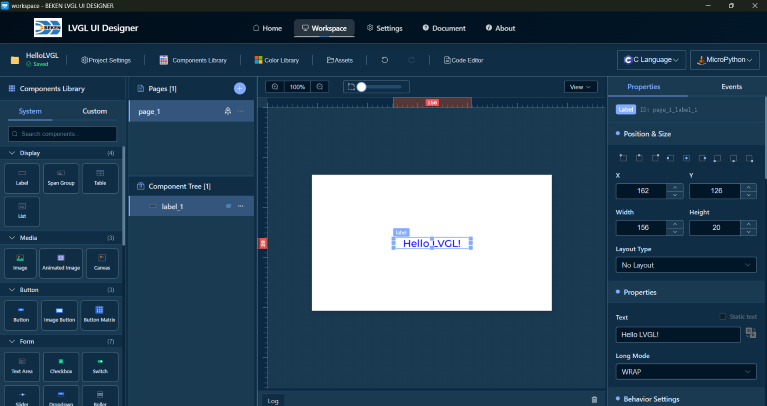
After creating the project, you will enter the workspace interface, which consists of 5 main areas:
- Toolbar: Project info, save, undo/redo, preview and other functions
- Component Library: All available UI components (buttons, labels, etc.)
- Canvas: Visual design area, drag components here
- Component Tree: Shows the hierarchy of pages and components
- Properties Panel: Edit properties and styles of selected components
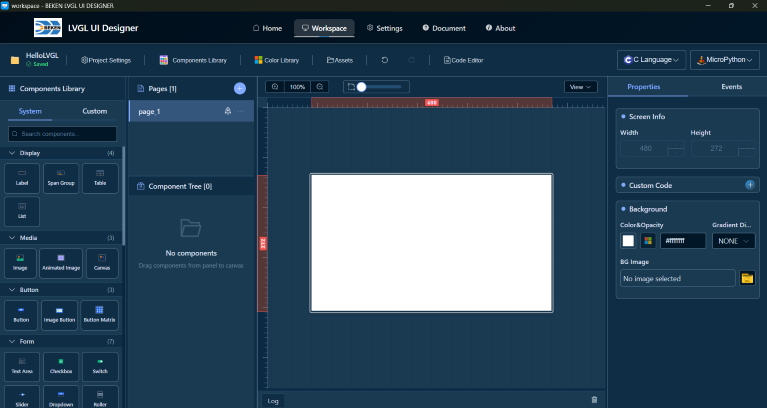
🎨 Design Your First Interface
Add a Label
- Drag "Label" from the Component Library to the canvas
- Find the "Text" property in the Properties Panel
- Enter text:
Hello LVGL! - Adjust font size and color:
- Select the "Font" section
- Set Size to 24
- Set Color to blue
Add a Button
- Drag "Button" from the Component Library to the canvas
- Place the button below the label
- Set the button text to
Click Me - Adjust button style:
- In the Style panel, set the background color
- Set Border Radius to 10px
Adjust Layout
- Select components in the Canvas
- Drag with mouse to adjust position
- Drag edge control points to adjust size
- Or enter precise values in the Properties Panel
💾 Save Project
- Projects are automatically saved (check the save status indicator in the toolbar)
- Or press
Ctrl + Sto manually save
📄 Preview and Generate Code
Preview Interface
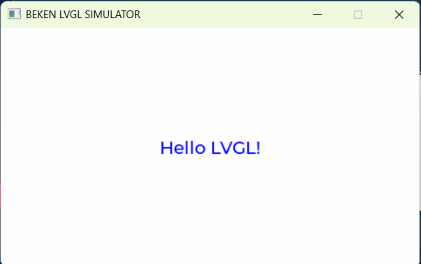
- Select preview method:
- C Language - For standard LVGL projects, click Generate + Compile + Run in the menu
- MicroPython - For MicroPython environments, click Generate + Run in the menu
- Code is generated in the project directory
Related Documents: Back to Home | Workspace Guide | FAQ