Getting Started
BK Controller SDK Code Download
You can download the BK Controller SDK from GitLab:
mkdir -p ~/armino
cd ~/armino
git clone http://gitlab.bekencorp.com/armino/bk_idk_controller.git
You can also download the BK Controller SDK from GitHub:
mkdir -p ~/armino
cd ~/armino
git clone --recurse-submodules https://github.com/bekencorp/bk_idk_controller.git
Then switch to a stable branch Tag, such as v2.1.1.1:
cd ~/armino/bk_idk_controller
git checkout -B your_branch_name v2.0.1.8
git submodule update --init --recursive
ls
Note
The SDK code downloaded from the official GitLab is the latest. Please apply for the relevant account through project review.
Build Environment Setup
We provide a Docker container-based environment deployment and compilation solution that supports efficient compilation on Linux, macOS, and Windows systems. With Docker containerization technology, you don’t need to manually install the various library files and toolchains required for compilation, significantly simplifying the deployment and compilation process. This solution is suitable for users familiar with Docker environments and its basic usage, helping you quickly achieve environment deployment and compilation.
For users who are not familiar with Docker technology or cannot use Docker environments due to network restrictions, we also provide a local compilation deployment solution based on script commands. The local deployment solution currently only supports compilation on Linux systems.
Project Configuration
You can change the Armino default configuration or configure different chips through the project configuration file:
Project configuration file Override Chip configuration file Override Default configuration
For example: bk7239/config >> bk7239.defconfig >> KConfig
+ Project configuration file example:
    projects/app/config/bk7239/config
+ Chip configuration file example:
    middleware/soc/bk7239/bk7239.defconfig
+ KConfig configuration file example:
    middleware/arch/cm33/Kconfig
    components/bk_cli/Kconfig
Create New Project
The default project for BK7239 is projects/app. You can refer to the projects/app project when creating a new project
Flash Firmware
Armino supports firmware flashing on Windows/Linux platforms. Please refer to the guidance documentation in the flashing tool for the flashing method. Taking the Windows platform as an example, Armino currently supports UART flashing. After the app project is compiled, all-app.bin is generated in the build/app/bk7239 directory. You can use this bin file for flashing. For secure projects, when flashing for the first time, you need to flash bootloader.bin first, then flash all-app.bin.
Flash via UART
Note
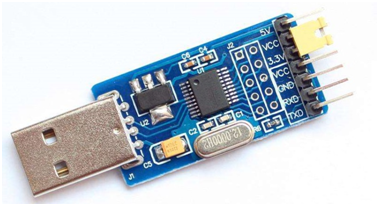
Armino supports UART flashing. It is recommended to use the CH340 serial tool board for downloading.
The serial flashing tool is shown in the following figure:
UART
Flashing tool (BKFIL) acquisition:
https://dl.bekencorp.com/tools/flash/ Get the latest version in this directory, such as: BEKEN_BKFIL_V2.1.6.0_20231123.zip
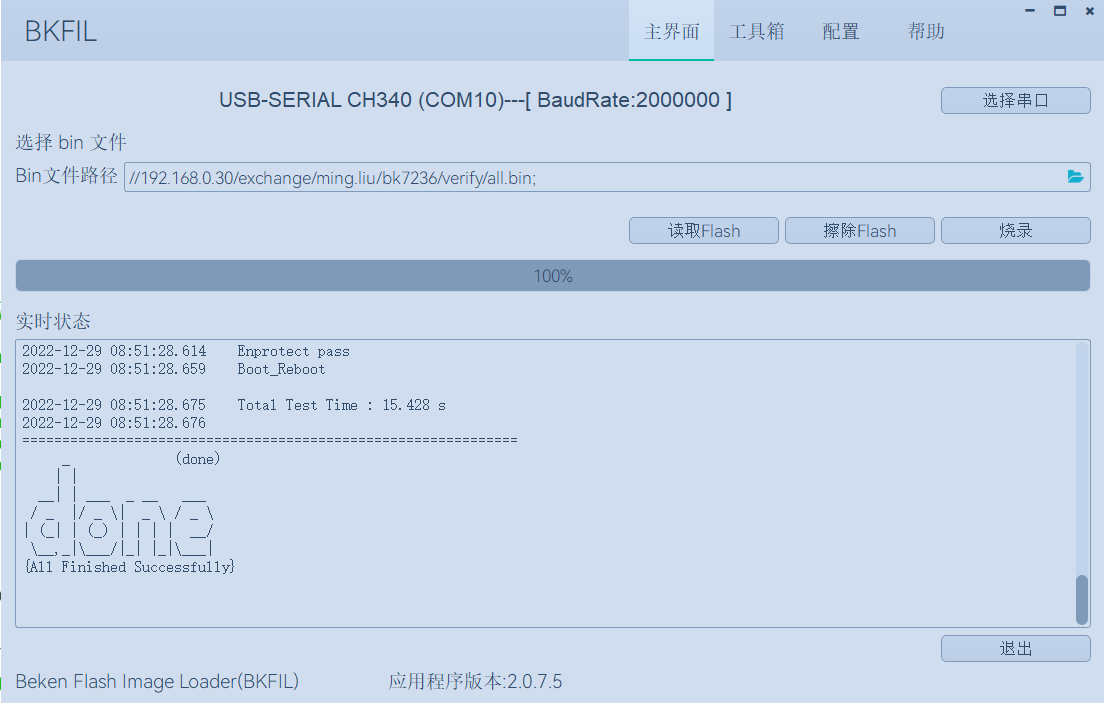
The BKFIL.exe interface and related configuration are shown in the following figure:
BKFIL GUI
Select the flashing serial port DL_UART0, click 烧录 (Flash) to flash the firmware. After flashing is complete, power off and restart the device.
If the device cannot be obtained during the flashing process and it gets stuck at Getting Bus..., you can press the reset button to restore the CPU state.
Serial Log and Command Line
Currently on the BK7239 platform, serial Log and CLI command input are on the DL_UART0 port. You can view the supported command list through the help command.