Quick Start Guide
This article demonstrates:
Code download
Environment deployment and compilation
How to configure Armino project
How to build the project and flash the bin to board
Preparation
Hardware:
BK7258 Demo board ( Introduction to Development Board , Purchase link )
Serial port burning tool
PC
Armino SDK Code download
You can download the Armino SMP code from GitLab:
mkdir -p ~/armino
cd ~/armino
git clone https://gitlab.bekencorp.com/armino/bk_avdk_smp.git -b release/v3.1.1
Warning
When using git clone to download the code on Windows, line ending issues may lead to compilation failure. Please solve them as follows:
Line ending issue:
Configure the Git environment variable before downloading the code:
git config --global core.autocrlf false
Note
GitLab is only open to corporate users. Please contact the corresponding person to apply.
Environment Deployment and Compilation
We provide two deployment methods: local compilation environment and Docker compilation environment. Users can choose one deployment method based on their hardware and usage habits. We recommend using a local compilation environment. The local deployment solution currently only supports compilation on Windows and Linux systems. Docker deployment is an environment deployment and compilation solution based on Docker containers, which supports efficient compilation on Linux, macOS, and Windows systems. With Docker containerization technology, you no longer need to manually install various library files and toolchains required for compilation, significantly simplifying the deployment and compilation process. This solution is suitable for users who are familiar with the Docker environment and understand its basic usage methods, and can help you quickly deploy and compile the environment. For users who are unfamiliar with Docker technology or unable to use the Docker environment due to network limitations, please use a local compilation and deployment solution.
Configure Project
You can use the project configuration file to override the chip configuration file, and then override the default configuration:
Project configuration file Override Chip configuration file Override Default configuration
Example: projects/app/ap/config/bk7258_ap/config >> ap/middleware/soc/bk7258_ap/bk7258_ap.defconfig >> KConfig
+ Project configuration file examples:
    projects/app/ap/config/bk7258_ap/config
    projects/app/cp/config/bk7258/config
+ Chip configuration file examples:
    ap/middleware/soc/bk7258_ap/bk7258_ap.defconfig
    cp/middleware/soc/bk7258/bk7258.defconfig
+ KConfig configuration file examples:
    ap/middleware/arch/cm33/Kconfig
    ap/components/bk_cli/Kconfig
    cp/middleware/arch/cm33/Kconfig
    cp/components/bk_cli/Kconfig
Select which CPUx executes a module
BK7258 adopts a tri-core system architecture. CPU1 and CPU2 form the Application Processor (AP) with an SMP architecture, while CPU0 is the Communication Processor (CP). The AP and CP form an AMP architecture and are compiled independently.
For modules such as the TRNG random number controller, which only has one instance, the application must decide exclusively which system (AP/CP) uses it in multi-core configurations.
The module switch macro
CONFIG_TRNGis disabled by default. If the CP needs TRNG while the AP does not, setCONFIG_TRNG=yin the CP default configuration filebk7258.defconfig.Wrap the code with
CONFIG_TRNGin software to isolate the calls:#if CONFIG_TRNG #Use the module macro to isolate the code #include "driver/trng.h" #endif ... #if CONFIG_TRNG #Use the module macro to isolate the code bk_rand(); #endif
New Project
For how to create a new project, refer to: create_new_project
After creating the project, you can perform menuconfig configuration. Refer to menuconfig configuration for the configuration method.
Burn Code
Armino supports firmware burning on both Windows and Linux platforms. Refer to the documentation in the burning tool for detailed instructions.
Take the Windows platform as an example: Armino currently supports UART burning.
After compiling the app project, all-app.bin is generated in the build/bk7258/app/package directory. Use this bin file for burning.
Burn through serial port
Note
Armino supports UART burning. It is recommended to use the CH340 serial port tool board to download.
Serial port burning tool is shown in the figure below:
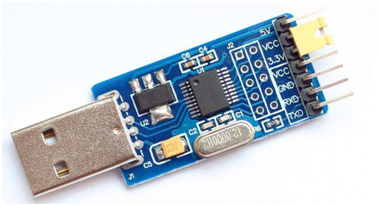
UART
The BKFIL burning tool can be obtained from:
https://dl.bekencorp.com/tools/bkfil/v4 Download the latest version in this directory, for example: BEKEN_BKFIL_V2.1.6.0_20231123.zip
The BKFIL.exe interface and related configurations are shown below:
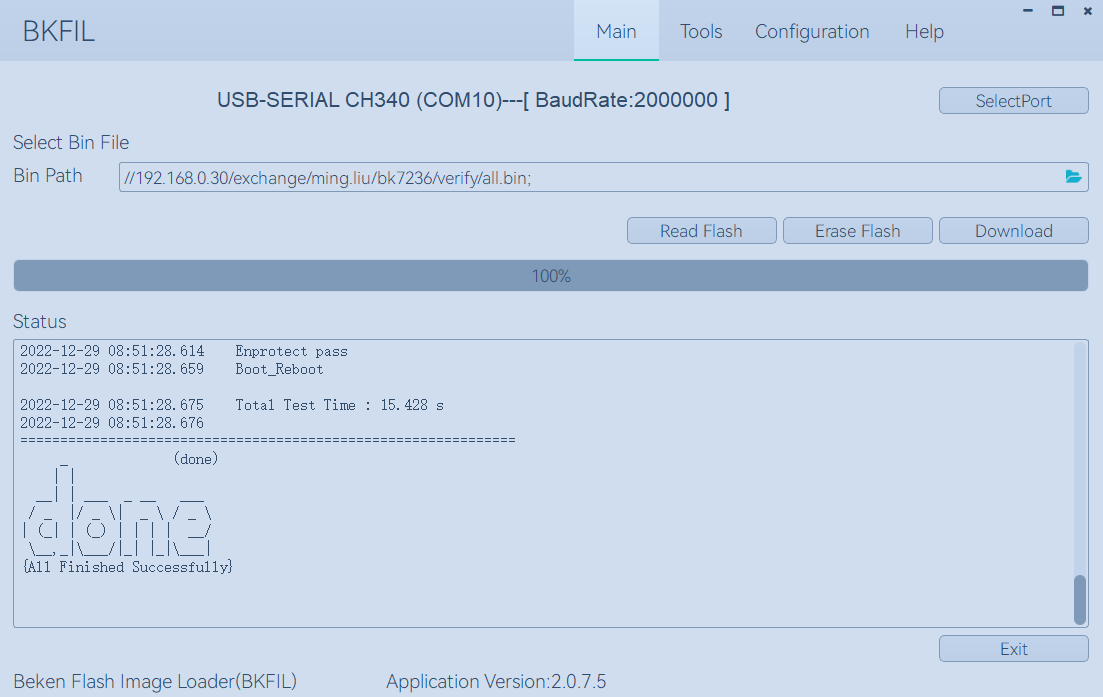
BKFIL GUI
Select the serial port DL_UART0, click Download to burn the firmware, and power cycle the device after burning.
If the burning process cannot obtain the device and gets stuck on Getting Bus..., press the reset button once to restore the CPU state.
Boot Log and Command Line Tool
After burning, connect to DL_UART0 (UART0) and set the baud rate to 115200 to view the boot log.
In the BK7258 SMP system, CLI commands also communicate through DL_UART0 (UART0). Use the serial communication tool to enter the help command to view the supported command list.